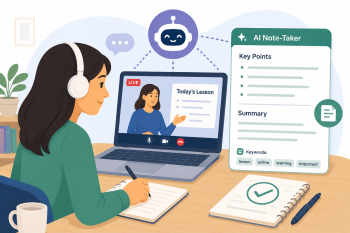
Using AI Note-Takers to Support Learning in Online Lessons
A practical session introducing learners to AI-powered note-taking tools that can transcribe and summarize online lessons in real-time, boosting comprehension and retention.
DigCompEdu Competence Area(s)
Digital resources, Teaching & learning, Empowering learners, Facilitating learners’ digital competence
Time
Preparation time 20 minutes
Implementation time 75 minutes
Educator Progression Level
Expert
Target groups
ESOL, Digital & Study Skills, 6-12, A2 – B2
Minimum student digital skill level
Basic
Minimum student language level
A2
🎓 Learning Objectives
Students will be able to:
- Identify the purpose and benefits of using an AI note-taker in a live online class.
- Set up and activate a selected AI note-taking tool (e.g., Google Recorder, Otter.ai).
- Use the generated transcript and summary to find key information they may have missed.
Ingredients
| Item / Resource | Quantity | Purpose |
|---|---|---|
| AI tool(s) (e.g., Otter.ai) | 1 per student | AI Note-Taker App |
| Content materials (Short video/audio for demo) | 1 | For practice and demonstration. |
| Physical materials (paper, markers) | 1 set | For board work |
| Online platforms / LMS/ Zoom/ Teams | 1 | For hosting the demo lesson |
Utensils
Devices: One smartphone or laptop per learner. Internet: Stable Wi-Fi connection. AI Tool Access: Access to a free AI note-taking tool (e.g., Otter.ai (free tier), Google Recorder (for Pixel phones), Microsoft Word’s Dictate feature, or Notta.ai). Audio: A headset with a microphone for each learner is recommended for better audio capture.
🥣 Preparation – Before Implementation
- Tool Selection: Choose one primary AI note-taking tool to demonstrate. Otter.ai is a strong candidate as it works on various devices and has a generous free tier.
- Demo Content: Create a short (3-5 minute) video or audio recording of yourself explaining a simple topic (e.g., “How to recycle in the UK”). This will be used for the practice session.
- Visual Guide: Create a visual step-by-step guide (screenshots work well) showing how to create an account and start recording on the chosen tool.
- Comprehension Questions: Prepare a short list of comprehension questions based on your demo video.
🔥 Implementation Steps
- Introduction & Context (15 mins): Discuss the challenges of following online lessons in a second language (speed, new vocabulary, accents). Introduce AI note-takers as a “personal assistant” that writes down everything the teacher says. Elicit benefits (e.g., can review later, can find specific words, reduces stress).
- Tool Demonstration (15 mins): Using a projector, demonstrate the chosen tool. Play your pre-recorded video and show the tool transcribing it in real-time. Highlight key features: the transcript, the summary, and the search function to find specific words.
- Guided Practice (30 mins): Learners use their own devices to set up the tool with the provided guide. Once set up, play the pre-recorded video again and have them start their own recording. The educator circulates to provide technical support. Afterwards, learners use their generated transcript to answer the simple comprehension questions.
- Application & Reflection (15 mins): Hold a brief, slow-paced 5-minute discussion on a new topic (e.g., “plans for the weekend”). Ask learners to use their AI note-taker. Afterwards, in pairs, they check their transcripts for one piece of information their partner said. Discuss as a group how they could use this tool in their real online classes. Tip: Emphasize that the transcription won’t be 100% perfect, especially with accents or specialized vocabulary, but it is a powerful aid for understanding.
🧂 Differentiation & Inclusion
- For learners with lower digital literacy: Provide more hands-on support during the setup phase or pair them with a more confident peer.
- For lower language levels (A2): Focus on the simple task of “finding a keyword” in the transcript rather than understanding the entire text.
- Accessibility: Ensure the chosen tool is accessible for learners using screen readers if needed.
🍴 Assessment & Feedback
| Criterion | Excellent | Good | Needs Work |
| Tool Setup & Operation | Independently set up the tool and successfully recorded audio | With peer/teacher support | Needed significant guidance to set up |
⚠️ Ethics, Privacy & Safeguarding
- Privacy and Consent: This is critical. Discuss the importance of always informing the teacher and other participants before recording an online session. Unauthorized recording may violate the privacy of others and could be against class rules.
- Data Security: Advise learners to check the privacy policy of the tool. Suggest they avoid giving the tool personal information and consider deleting transcripts after they are no longer needed.
- Tool Limitations: Explain that AI can make mistakes in transcription, so the notes should be used as a study aid, not as a perfect, definitive record.
🍱 Extensions / Follow‑Ups
Homework: Learners use the tool to transcribe a short, online news clip (e.g., from BBC Learning English) and bring one new word they learned to the next class.
🔗 Cross‑Subject Link
References & Resources
Otter.ai: otter.ai – A popular, user-friendly AI note-taking service with a free plan.
Microsoft Support: Dictate your documents: support.microsoft.com/en-us/office/dictate-your-documents-3876e04f-3fcc-418f-b8ab-db7ee2a6a2e6 – Guide on using the dictation feature in Word Online, which can also transcribe live speech.
BBC Learning English: bbc.co.uk/learningenglish – A great source for short, clear audio/video clips to practice transcription.