
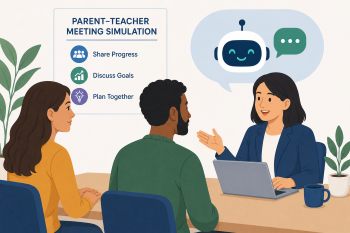
Parent-Teacher Meeting Simulation
An AI-assisted role-play workshop helping migrant parents navigate parent-teacher meetings with confidence, using live translation, AI summarisation, and AI writing tools to bridge language and cultural barriers.
Τομέας(-είς) ικανοτήτων DigCompEdu
Digital resources, Teaching & learning, Empowering learners, Facilitating learners’ digital competence
Χρόνος
Χρόνος προετοιμασίας 45 λεπτά
Implementation time 90 minutes
Επίπεδο Εξέλιξης Εκπαιδευτικού
Εξερευνητής
Ομάδες-στόχοι
Adult migrants (parents) Group size: 8-12 A2-B1 language level
Ελάχιστο επίπεδο ψηφιακών δεξιοτήτων των μαθητών
Βασικό
Ελάχιστο επίπεδο γλωσσομάθειας του μαθητή
A2
🎓 Μαθησιακοί Στόχοι
By the end of this lesson, educators will be equipped to teach learners how to:
- Use AI live transcription and translation tools to follow spoken conversations in real time during meetings.
- Use AI summarisation tools to extract key information from school reports and meeting notes.
- Draft clear, polite questions and follow-up emails to teachers using AI writing assistants.
- Critically evaluate AI-generated output and know when to seek direct human clarification.
Συστατικά
| Είδος / Πόρος | Ποσότητα | Σκοπός |
|---|---|---|
| Sample School Report (mocked-up) | 1 per participant | For AI summarisation practice with educational jargon |
| Parent-Teacher Meeting Scenario Cards | 1 set per pair | Short descriptions of common meeting topics |
| “Meeting Prep” Prompt Guide | 1 per participant | Tested prompts for AI writing assistants |
| AI Live Transcription/Translation App (e.g. Google Translate, Microsoft Translator) | 1 per participant | For real-time understanding of spoken language |
| AI Summarisation Tool (e.g. Otter.ai, ChatGPT, Claude) | 1 per participant | For simplifying school reports or meeting notes |
| AI Writing Assistant (e.g. Grammarly, or LLM for drafting) | 1 per participant | For preparing questions or follow-up communication |
Εξοπλισμός
- Smartphones, tablets, or laptops per participant
- Internet access (required)
- Projector or shared screen for demonstrations
- Printed or digital scenario cards and prompt guides
🥣 Προετοιμασία – Πριν από την υλοποίηση
- Create a mocked-up Sample School Report using realistic but fictional data – include common educational jargon such as “attainment,” “formative assessment,” “social-emotional learning,” and “differentiated instruction.”
- Prepare 6-8 Parent-Teacher Meeting Scenario Cards covering common topics: academic progress, behaviour, homework, attendance, and special educational needs.
- Prepare the “Meeting Prep” Prompt Guide with tested prompts for: summarising a school report, drafting a question for the teacher, and writing a polite follow-up email.
- Test Google Translate’s live transcription feature and Otter.ai (or equivalent) to ensure they work reliably in your classroom environment.
- Set up a brief role-play script for the demonstration in Part 1, involving two facilitators or a facilitator and a volunteer.
🔥 Βήματα υλοποίησης
Part 1: Live Translation Simulation (30 minutes)
- (10 min) Introduction: Discuss the challenge of attending a parent-teacher meeting in a language you are still learning. What are the biggest fears? (Not understanding, not being taken seriously, missing key information.)
- (10 min) Live demo: Two facilitators role-play a parent-teacher meeting. Learners use Google Translate’s live transcription or Microsoft Translator on their devices to follow the conversation in real time in their home language.
- (10 min) Debrief: How accurate was the translation? What was missed or misunderstood? Discuss the limitations of live AI translation and strategies for clarification
Part 2: Decoding the School Report (30 minutes)
- (10 min) Introduce the Sample School Report. Learners identify words or phrases they do not understand. Paste a section into an AI summarisation tool and prompt: “Summarise this school report for a parent” or “Explain the child’s academic progress in simple terms.” Compare the original with the AI summary.
- (20 min) Learners work individually or in pairs with the Sample School Report and an AI summarisation tool. Their task: obtain a simplified summary and identify 2-3 key pieces of information (child’s strengths, areas for improvement, next steps).
Part 3: Drafting Effective Communication (30 minutes)
- (10 min) Discuss the importance of asking clear questions during meetings or in follow-up communication. Introduce AI writing assistants as tools to help draft precise, polite questions and emails.
- (10 min) Demo: Use an AI writing assistant to draft a question based on a scenario. Example prompt: “Write a polite email asking the teacher about my child’s homework.” Show how to refine language for clarity and tone.
- (10 min) Learners use an AI writing assistant to draft 2-3 questions they would ask a teacher, based on a Scenario Card or their analysed school report. Optionally, draft a short follow-up email.
🧂 Διαφοροποίηση και Συμπερίληψη
- For lower digital literacy: Provide pre-installed apps and simplified interfaces. Focus on one AI tool initially. Pair with more digitally confident learners.
- For lower language levels (A2): Focus on basic phrases and single-sentence translations. Use highly visual school reports. Provide a glossary of common educational terms.
- For higher language levels (B1+): Encourage more complex queries for AI summarisation and writing assistants. Challenge learners to critically evaluate the nuances of AI-generated communication.
- For learners with children with special educational needs: Prepare scenario cards that include SEN-related vocabulary and situations
🍴 Αξιολόγηση και ανατροφοδότηση
| Κριτήριο | Έξοχα | Καλά | Χρειάζεται δουλειά |
| Live translation use | Uses live translation tool independently and identifies inaccuracies during the simulation | Uses the tool with some guidance; identifies some inaccuracies | Struggles to use the tool or does not notice translation errors |
| Report summarisation | Extracts all 3 key pieces of information accurately from the AI-summarised report | Extracts 2 key pieces with minor gaps | Struggles to identify key information from the summary |
| Question/email drafting | Drafts 2–3 clear, polite, contextually appropriate questions or a well-structured email | Drafts questions with minor clarity or tone issues | Questions are unclear, impolite, or off-topic |
| Critical AI evaluation | Clearly articulates what AI did well and where human verification is still needed | Shows some awareness of AI limitations | Relies entirely on AI output without critical evaluation |
⚠️ Ηθική, Ιδιωτικότητα & Διασφάλιση Προστασίας
- Data privacy: Emphasise never inputting personal identifying information (e.g. child’s full name, date of birth, school name) into public AI tools. Use anonymised or hypothetical data for all practice activities.
- Consent for recording: If using live transcription, discuss the importance of obtaining consent from all parties before recording any conversation, especially in a school setting.
- AI limitations: Stress that AI is a tool to aid understanding and communication, not a substitute for direct human interaction. Encourage learners to always clarify important information with the teacher directly.
- Cultural sensitivity: Be aware that parent-teacher meeting norms vary across cultures; validate different communication styles while building confidence in the host country context.
🍱 Επεκτάσεις / Συνέχειες
- School Terminology Glossary: Learners use AI to build a personalised glossary of school-related terms and their explanations in their home language.
- School Website Navigation: Use AI-powered search tools to find information about school events, policies, or contact details on the school website.
- Creating Visual Schedules: Use AI image generators to create simple, visual daily or weekly schedules for children, incorporating school activities.
- Full Meeting Simulation: Conduct a complete role-played parent-teacher meeting using all three AI tools together, with peer feedback on communication effectiveness.
🔗 Σύνδεση μεταξύ γνωστικών αντικειμένων
Αναφορές και Πηγές
Google Translate (live transcription): https://translate.google.com
Microsoft Translator: https://www.microsoft.com/en-us/translator/
Otter.ai (meeting transcription): https://otter.ai
Grammarly (AI writing assistant): https://www.grammarly.com
Claude (summarisation and drafting): https://claude.ai
ChatGPT: https://chat.openai.com