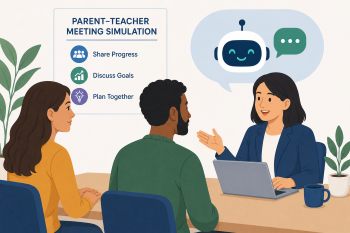
Simulation eines Elterngesprächs
Ein KI-gestützter Rollenspiel-Workshop, der zugewanderte Eltern dabei unterstützt, Elterngespräche selbstbewusst zu meistern – unter Einsatz von Live-Übersetzung, KI-gestützter Zusammenfassung und KI-Schreibtools, um Sprach- und Kulturbarrieren zu überbrücken.
DigCompEdu-Kompetenzbereich(e)
Digitale Ressourcen, Lehren und Lernen, Lernerorientierung, Förderung der Digitalen Kompetenz der Lernenden
Zeit
Vorbereitung: 45 Min.
Umsetzung: 90 Min.
Progressionsniveau der Lehrkräfte
Entdecker - Insider
Zielgruppe
Erwachsene Migranten (Eltern) Gruppengröße: 8 – 12 Personen Sprachniveau: A2 – B1
Niveau der digitalen Kompetenzen
Grundstufe
Sprachniveau der Lernenden
A2
🎓 Lernziele
Am Ende dieser Unterrichtseinheit können Lehrkräfte den Lernenden vermitteln, wie sie:
- wie man KI-Live-Transkriptions- und Übersetzungstools nutzt, um gesprochene Gespräche während Besprechungen in Echtzeit zu verfolgen
- Verwendung von KI-Zusammenfassungstools, um wichtige Informationen aus Schulberichten und Besprechungsnotizen zu extrahieren
- Verfassen von klaren, höflichen Fragen und Folge-E-Mails an Lehrer mithilfe von KI-Schreibassistenten
- KI-generierte Ergebnisse kritisch bewerten und wissen, wann Sie eine direkte menschliche Klärung suchen sollten
Zutaten
| Ressource | Anzahl | Zweck |
|---|---|---|
| Muster-Schulbericht (Modell) | 1 pro Person | Üben der KI-gestützten Zusammenfassung von Inhalten mit pädagogischer Fachsprache |
| Szenariokarten für Eltern-Lehrer-Treffen | 1 Set pro Paar | kurze Beschreibungen gängiger Besprechungsthemen |
| Anleitung zur „Gesprächsvorbereitung“ | 1 pro Person | bewährte Prompts für KI-Schreibassistenten |
| KI Live Transkriptions- / Übersetzungs-App (z. B. Google Translate, Microsoft Translator) | 1 pro Person | Echtzeit-Verständnis gesprochener Sprache |
| KI-Zusammenfassungstool (z. B. Otter.ai, ChatGPT, Claude) | 1 pro Person | Vereinfachung von Schulberichten oder Besprechungsprotokollen |
| KI-Schreibassistent (z. B. Grammatik oder LLM für das Verfassen) | 1 pro Person | Vorbereitung von Fragen oder der weiterführenden Kommunikation |
Zubehör
- Smartphones, Tablets oder Laptops pro Teilnehmendem
- Internetzugang (erforderlich)
- Beamer oder geteilter Bildschirm für Demonstrationen
- gedruckte oder digitale Szenariokarten und Leitfäden
🥣 Vorbereitung – Vor dem Einsatz im Unterricht
- Erstellen Sie einen beispielhaften Schulbericht mit realistischen, aber fiktiven Daten; verwenden Sie dabei gängige pädagogische Fachbegriffe wie „Leistungsstand“, „formative Leistungsbeurteilung“, „sozial-emotionales Lernen“ und „differenzierter Unterricht“.
- Bereiten Sie 6–8 Szenariokarten für Elterngespräche vor, die typische Themen abdecken: schulische Fortschritte, Verhalten, Hausaufgaben, Anwesenheit und sonderpädagogischer Förderbedarf.
- Erstellen Sie einen Leitfaden zur Gesprächsvorbereitung mit bewährten Impulsen für: die Zusammenfassung eines Schulberichts, das Formulieren einer Frage an die Lehrkraft und das Verfassen einer höflichen E-Mail im Nachgang.
- Testen Sie die Live-Transkriptionsfunktion von Google Übersetzer sowie Otter.ai (oder ein vergleichbares Tool), um sicherzustellen, dass sie in Ihrer Unterrichtsumgebung zuverlässig funktionieren.
- Entwerfen Sie ein kurzes Rollenspiel-Skript für die Demonstration in Teil 1, an dem zwei Moderatoren oder ein Moderator und eine freiwillige Person beteiligt sind.
🔥 Umsetzung (Im Unterricht / Synchron )
Teil 1: Simulation einer Live-Übersetzung (30 Minuten)
- (10 Min.) Vorstellung eines Muster-Schulzeugnisses. Die Teilnehmenden identifizieren Wörter oder Formulierungen, die sie nicht verstehen. Ein Textabschnitt wird in ein KI-Tool zur Zusammenfassung eingegeben, verbunden mit der Aufforderung: „Fasse dieses Schulzeugnis für Eltern zusammen“ oder „Erkläre die schulischen Fortschritte des Kindes in einfachen Worten.“ Vergleich des Originals mit der KI-Zusammenfassung.
- (10 Min.) Live-Demonstration: Zwei Kursleiter simulieren in einem Rollenspiel ein Elterngespräch. Die Teilnehmenden nutzen die Live-Transkription von Google Translate oder Microsoft Translator auf ihren Geräten, um dem Gespräch in Echtzeit in ihrer Muttersprache zu folgen.
- (10 Min.) Nachbesprechung: Wie genau war die Übersetzung? Was wurde übersehen oder missverstanden? Diskussion über die Grenzen der KI-Live-Übersetzung und Strategien zur Klärung.
Teil 2: Das Schulzeugnis entschlüsseln (30 Minuten)
- (10 Min.) Vorstellung eines Muster-Schulzeugnisses. Die Teilnehmenden identifizieren Wörter oder Formulierungen, die sie nicht verstehen. Ein Textabschnitt wird in ein KI-Tool zur Zusammenfassung eingegeben, verbunden mit der Aufforderung: „Fasse dieses Schulzeugnis für Eltern zusammen“ oder „Erkläre die schulischen Fortschritte des Kindes in einfachen Worten.“ Vergleich des Originals mit der KI-Zusammenfassung.
- (20 Min.) Die Teilnehmenden arbeiten einzeln oder zu zweit mit dem Muster-Schulzeugnis und einem KI-Tool zur Zusammenfassung. Ihre Aufgabe: eine vereinfachte Zusammenfassung erstellen und 2–3 Kerninformationen herausarbeiten (Stärken des Kindes, Verbesserungsbereiche, nächste Schritte).
Teil 3: Effektive Kommunikation entwerfen (30 Minuten)
- (10 Min.) Besprechen Sie, wie wichtig es ist, während Gesprächen oder in der Folgekommunikation klare Fragen zu stellen. Führen Sie KI-Schreibassistenten als Werkzeuge ein, die beim Verfassen präziser, höflicher Fragen und E-Mails helfen.
- (10 Min.) Demo: Verwenden Sie einen KI-Schreibassistenten, um eine Frage basierend auf einem Szenario zu verfassen. Beispielaufforderung: „Schreiben Sie eine höfliche E-Mail und fragen Sie den Lehrer nach den Hausaufgaben meines Kindes.“ Zeigen Sie, wie Sie die Sprache verfeinern, um Klarheit und Tonalität zu erreichen.
- (10 Min.) Die Lernenden verwenden einen KI-Schreibassistenten, um auf der Grundlage einer Szenariokarte oder ihres analysierten Schulberichts zwei bis drei Fragen zu entwerfen, die sie einem Lehrer stellen würden. Verfassen Sie optional eine kurze Folge-E-Mail.
🧂 Differenzierung & Inklusion
- Bei geringerer digitaler Kompetenz: Vorinstallierte Apps und vereinfachte Benutzeroberflächen bereitstellen. Zunächst den Fokus auf ein KI-Tool legen. Lernende mit digital versierteren Personen zusammenbringen.
- Für niedrigere Sprachniveaus (A2): Den Fokus auf einfache Redewendungen und Übersetzungen einzelner Sätze legen. Anschauliche Schulberichte verwenden. Ein Glossar mit gängigen Fachbegriffen bereitstellen.
- Für höhere Sprachniveaus (B1+): Komplexere Anfragen an KI-gestützte Zusammenfassungs- und Schreibassistenten fördern. Lernende dazu anregen, die Nuancen KI-generierter Kommunikation kritisch zu hinterfragen.
- Für Lernende mit Kindern mit sonderpädagogischem Förderbedarf: Szenariokarten mit Vokabeln und Situationen aus diesem Bereich vorbereiten.
🥄 Evaluation & Feedback
| Instrument/Kriterium | Ausgezeichnet | Gut | Verbesserungswürdig |
| Nutzung der Live-Übersetzung | verwendet das Live-Übersetzungstool eigenständig und erkennt Ungenauigkeiten während der Simulation | verwendet das Tool mit etwas Unterstützung; erkennt einige Ungenauigkeiten | hat Schwierigkeiten bei der Verwendung des Tools oder bemerkt keine Übersetzungsfehler |
| Zusammenfassung des Berichts | extrahiert präzise alle drei Kerninformationen aus dem KI-generierten Bericht | extrahiert zwei Kerninformationen mit geringfügigen Lücken | hat Schwierigkeiten, Kerninformationen aus der Zusammenfassung zu identifizieren |
| Formulierung von Fragen/E-Mails | entwirft 2–3 klare, höfliche und dem Kontext angemessene Fragen oder eine gut strukturierte E-Mail | entwirft Fragen mit geringfügigen Mängeln hinsichtlich Klarheit oder Tonfall | Fragen sind unklar, unhöflich oder thematisch unpassend |
| Kritische Bewertung der KI | legt klar dar, was die KI gut gemacht hat und wo weiterhin eine menschliche Überprüfung erforderlich ist | zeigt ein gewisses Bewusstsein für die Grenzen der KI | verlässt sich ohne kritische Bewertung vollständig auf die Ergebnisse der KI |
⚠️ Ethik, Datenschutz & Schutzmaßnahmen
- Datenschutz: Betonen Sie, dass niemals personenbezogene Daten (z. B. vollständiger Name des Kindes, Geburtsdatum, Name der Schule) in öffentlich zugängliche KI-Tools eingegeben werden dürfen. Verwenden Sie für alle Übungen anonymisierte oder fiktive Daten.
- Einwilligung zur Aufzeichnung: Wenn eine Live-Transkription genutzt wird, sollte die Bedeutung der vorherigen Zustimmung aller Beteiligten – insbesondere im schulischen Kontext – vor Beginn einer Aufzeichnung thematisiert werden.
- Grenzen der KI: Heben Sie hervor, dass KI als Hilfsmittel für Verständnis und Kommunikation dient, aber keinen Ersatz für den direkten menschlichen Austausch darstellt. Ermutigen Sie die Lernenden dazu, wichtige Informationen stets direkt mit der Lehrkraft zu klären.
- Kulturelle Sensibilität: Berücksichtigen Sie, dass sich die Gepflogenheiten bei Elterngesprächen je nach Kulturkreis unterscheiden können; erkennen Sie unterschiedliche Kommunikationsstile an und fördern Sie gleichzeitig das Selbstvertrauen im Kontext des Gastlandes.
🍱 Erweiterungen / Weiterverfolgung
- Glossar für Schulbegriffe: Lernende nutzen KI, um ein personalisiertes Glossar mit schulbezogenen Begriffen und deren Erklärungen in ihrer Muttersprache zu erstellen.
- Navigation auf der Schulwebseite: Nutzung KI-gestützter Suchfunktionen, um Informationen zu Schulveranstaltungen, Richtlinien oder Kontaktdaten auf der Webseite der Schule zu finden.
- Erstellung visueller Zeitpläne: Einsatz von KI-Bildgeneratoren zur Erstellung einfacher, visueller Tages- oder Wochenpläne für Kinder, die schulische Aktivitäten integrieren.
- Umfassende Simulation eines Elterngesprächs: Durchführung eines vollständigen Elterngesprächs im Rollenspiel unter gemeinsamer Nutzung aller drei KI-Tools, ergänzt durch Feedback von Mitschülern zur Effektivität der Kommunikation.
🔗 Fächerübergreifender Bezug
📚 Weiterführende Literatur & Ressourcen
Google Übersetzer (Live-Transkription): https://translate.google.com
Microsoft Übersetzer: https://www.microsoft.com/en-us/translator/
Otter.ai (Transkription von Gesprächen): https://otter.ai
Grammarly (KI Schreibassistent): https://www.grammarly.com
Claude (Zusammenfassung und Entwurf ): https://claude.ai
ChatGPT: chat.openai.com – weitgehend verfügbar und für diesen Zweck wirksam https://chat.openai.com