
Immersive Reader for Accessible Learning
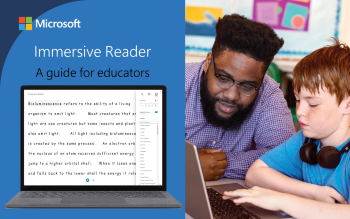
Use Microsoft Immersive Reader to support reading comprehension, accessibility and language learning through text-to-speech, translation and visual reading aids.
DigCompEdu Competence Area(s)
Digital resources, Empowering learners
Time
Preparation time 5 minutes
Implementation time 25 minutes
Educator Progression Level
Explorer
Target groups
Individuals or whole class Literacy / Any subject · A1-B2
Minimum student digital skill level
Basic
Minimum student language level
A1
🎓 Learning Objectives
- Use Immersive Reader to listen to texts read aloud and follow along with highlighted words.
- Adjust reading settings (font size, spacing, syllable display) to support comprehension.
- Use the translation and picture dictionary features to understand unfamiliar vocabulary.
Ingredients
| Item / Resource | Quantity | Purpose |
|---|---|---|
| Microsoft 365 application (Word OneNote Teams) | 1 per learner | Access Immersive Reader |
| Reading text | One per session | Content for the reading activity |
| Devices with internet access | One per learner | Access the platform |
Utensils
Devices with internet access and Microsoft 365 accounts.
🥣 Preparation – Before Implementation
- Prepare or select a reading text and open it in a Microsoft application (Word, OneNote, Teams).
- Familiarise yourself with Immersive Reader settings and features.
🔥 Implementation Steps
- Introduce Immersive Reader and demonstrate key features: text-to-speech, line focus, syllable display and translation.
- Learners open the text in Immersive Reader and adjust settings to their preference.
- Students read and listen simultaneously, using the picture dictionary for unknown words.
- Facilitate a comprehension discussion after the reading activity.
🧂 Differentiation & Inclusion
- Enable translation for learners who need L1 support.
- Use line focus and syllable display for learners with dyslexia or reading difficulties.
🍴 Assessment & Feedback
| Criterion | Excellent | Good | Needs Work |
| Reading comprehension | Accurately answers comprehension questions and explains key ideas | Answers most questions with minor gaps | Struggles to answer comprehension questions |
| Use of accessibility features | Independently adjusts settings and uses features effectively | Uses features with some guidance | Rarely engages with accessibility features |
⚠️ Ethics, Privacy & Safeguarding
- Ensure texts used do not contain sensitive or inappropriate content.
- Respect learner privacy when using cloud-based Microsoft tools.
🍱 Extensions / Follow‑Ups
Ask learners to record themselves reading a passage aloud after using Immersive Reader.
🔗 Cross‑Subject Link
Use in science or history to support reading of complex texts.
References & Resources
Microsoft Immersive Reader is a free, inclusive tool built into Microsoft 365 applications that supports reading and writing for people of all abilities through text-to-speech, translation and visual customisation.