
Die Welt um dich herum übersetzen – Ein Workshop zur Google Translate-Kamera
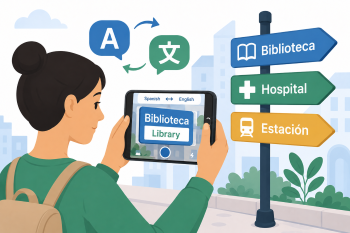
Nutzen Sie die Kamerafunktion von Google Übersetzer, um erwachsene Lernende mit Migrationshintergrund dabei zu unterstützen, Schilder, Speisekarten, Etiketten und Alltagstexte in ihrer Umgebung zu lesen und zu verstehen.
DigCompEdu-Kompetenzbereich(e)
Digitale Ressourcen, Lernerorientierung, Förderung der digitalen Kompetenz der Lernenden
Zeit
Vorbereitung: 15 Min.
Umsetzung: 60 Min.
Progressionsniveau der Lehrkräfte
Entdecker - Insider
Zielgruppe
Erwachsene Migranten Anfänger - Mittelstufe - A1 - B1
Niveau der digitalen Kompetenzen
Grundstufe
Sprachniveau der Lernenden
A1
🎓 Lernziele
Nach Abschluss der Unterrichtseinheit können die Lernenden:
- die Kamerafunktion von Google Übersetzer nutzen, um Texte in Ihrer Umgebung zu übersetzen
- Schilder, Speisekarten, Etiketten und Hinweise in der Landessprache lesen und verstehen
- Sicherheit bei der eigenständigen Bewältigung alltäglicher Situationen gewinnen
- ihren Wortschatz für typische Alltagssituationen (Einkaufen, Verkehr, Gesundheit) erweitern
Zutaten
| Ressource | Anzahl | Zweck |
|---|---|---|
| Smartphones mit der Google Übersetzer-App | 1 pro Person | für die Kamera-Übersetzungsfunktion |
| reale Textbeispiele (Speisekarten, Schilder, Etiketten) | 5-10 pro Unterrichtseinheit | Übungsmaterial für die Kamera-Übersetzung |
| Google Übersetzer-App (kostenlos) | 1 auf jedem Gerät | KI-Übersetzung mit Kamerafunktion |
| Arbeitsblatt zur Vokabelerfassung | 1 pro Person | neue Wörter notieren, die während der Aktivität entdeckt wurden |
Zubehör
- Smartphones mit Kamera (eigene Geräte der Lernenden oder Geräte aus dem Unterricht)
- installierte Google-Übersetzer-App (kostenloser Download)
- ausgedruckte oder reale Textbeispiele
🥣 Vorbereitung – Vor dem Einsatz im Unterricht
- Sammeln Sie 5–10 Textbeispiele aus dem Alltag: Speisekarten, Lebensmittelkennzeichnungen, Busfahrpläne, Ladenschilder, Medikamentenverpackungen.
- Testen Sie die Kamerafunktion von Google Übersetzer mit jedem Beispiel, um sicherzustellen, dass die Ergebnisse gut sind.
- Erstellen Sie ein Arbeitsblatt, auf dem die Lernenden neue Vokabeln notieren können.
- Planen Sie nach Möglichkeit einen kurzen Spaziergang außerhalb des Kursraums, um die Kamerafunktion an echten Schildern auszuprobieren.
🔥 Umsetzung (Im Unterricht / Synchron )
- Einstieg: Fragen Sie die Teilnehmenden: „Wo begegnet Ihnen im Alltag Text, den Sie nur schwer verstehen?“
- Einführung in Google Übersetzer: Zeigen Sie, wie man die App herunterlädt und öffnet.
- Demonstration der Kamerafunktion: Richten Sie die Kamera auf eine Textvorlage und zeigen Sie die Live-Übersetzungsanzeige.
- Die Teilnehmenden üben paarweise mit vorbereiteten Textvorlagen.
- Gemeinsame Besprechung der Übersetzungen: Sind sie korrekt? Was bedeuten die Texte? Welche Handlung könnte erforderlich sein?
- Optionale Aktivität im Freien: Machen Sie einen kurzen Spaziergang und nutzen Sie die Kamerafunktion bei echten Schildern, Speisekarten oder Aushängen.
- Abschlussbesprechung: Die Teilnehmenden berichten von der nützlichsten oder überraschendsten Übersetzung, die sie gefunden haben.
🧂 Differenzierung & Inklusion
- Für Anfänger: Konzentrieren Sie sich auf einzelne Wörter und einfache Bezeichnungen; vermeiden Sie komplexe Dokumente.
- Für Fortgeschrittene: Bitten Sie sie, den übersetzten Text einem Mitschüler in einfacher Sprache zu erklären.
- Für Lernende ohne Smartphone: Arbeiten Sie mit einem Mitschüler zusammen oder nutzen Sie ein Tablet im Kursraum.
🥄 Evaluation & Feedback
| Instrument/Kriterium | Ausgezeichnet | Gut | Verbesserungswürdig |
| Nutzung des Tools | nutzt die Kamerafunktion von Google Translate unabhängig und sicher | nutzt das Tool mit etwas Anleitung | benötigt erhebliche Unterstützung, um die Kamerafunktion nutzen zu können |
| Verständnis des übersetzten Textes | versteht und erklärt die Bedeutung übersetzter Texte genau | versteht die meisten Inhalte mit kleineren Lücken | hat Schwierigkeiten, den übersetzten Inhalt zu verstehen |
| Wortschatzerwerb | notiert und verwendet mehr als 5 neue Wörter aus der Aktivität | notiert 2–4 neue Wörter | notiert weniger als 2 neue Wörter |
⚠️ Ethik, Datenschutz & Schutzmaßnahmen
- Weisen Sie die Lernenden darauf hin, keine Personen oder Privateigentum ohne Erlaubnis zu fotografieren.
- Stellen Sie sicher, dass die Lernenden verstehen, dass KI-Übersetzungen möglicherweise nicht zu 100 % genau sind.
- Verwenden Sie die Kamerafunktion nicht zum Fotografieren persönlicher oder sensibler Dokumente.
- Beachten Sie die Schulvorschriften zur Handynutzung während der Unterrichtsaktivitäten.
🍱 Erweiterungen / Weiterverfolgung
- Hausaufgabe: Fotografieren und übersetzen von fünf Texten in der eigenen Nachbarschaft.
- Erstellen Sie gemeinsam ein „Übersetzungsalbum“ mit interessanten oder nützlichen Übersetzungen aus dem Alltag.
- Entdecken Sie weitere Funktionen von Google Übersetzer: Sprachübersetzung, Offline-Modus und Konversationsmodus.
🔗 Fächerübergreifender Bezug
📚 Weiterführende Literatur & Ressourcen
Google Übersetzer https://translate.google.com
Google Übersetzer-App: für iOS und Android