
Using Google Voice Typing to Improve Speaking Skills
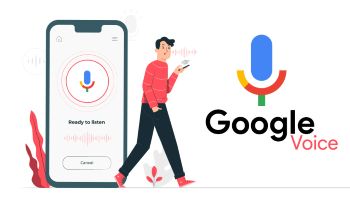
Use Google Voice Typing to help adult learners practice speaking, reflect on their speech, and improve pronunciation and clarity.
DigCompEdu Competence Area(s)
Digital resources, Empowering learners
Time
Preparation time 30 minutes
Implementation time 45 minutes
Educator Progression Level
Expert
Target groups
Any type of students
Minimum student digital skill level
Basic
Minimum student language level
A1
🎓 Learning Objectives
Students will be able to…
- Practice speaking to improve pronunciation
- Enhance their understanding of spoken language by comparing speech and transcription
- Identify specific areas for improvement (sounds, word order, clarity)
Ingredients
| Item / Resource | Quantity | Purpose |
|---|---|---|
| Google Doc | 1 per learner or pair | Voice typing and transcription |
| Google account | 1 | Access to Google Docs |
| Microphone (built-in or external) | 1 per device | Clear speech input |
| Speaking prompts | Several | For speaking tasks |
| Reflection questions | 3-5 | To support formative assessment |
Utensils
- Computer or tablet with internet access
- Google Chrome browser recommended
- Quiet space to record (headphones recommended)
🥣 Preparation – Before Implementation
- Define speaking focus – decide what you want learners to practice for example, pronunciation, sentence structure, fluency, functional speaking (e.g. appointments, work situations)
- Prepare texts (or prompts) in line with your learning topic. Examples, “describe your hobbies”, “describe your job”.
- Set formative assessment focus. Choose 1-2 criteria only, ie. speech clarity, key words understood
- Check technical setup by opening Google Docs. In Google Docs, go to Tools → Voice typing
- Test microphone and language settings in the drop down of the Google Docs mic
🔥 Implementation Steps
- To have your students use Google Voice, you need to first model how it works.
- Speak slowly and clearly and show how speech appears as text. Show an example of what happens when pronunciation (or speaking error you want to emphasize) is unclear.
- Show them that when they want to start a new line or add punctuation, they can do so with the keyboard while speaking [hit enter for a new line or add needed punctuation].
- Tip: Encourage more advanced learners to use Voice Typing for structuring, not just speaking. Show learners that they can say punctuation out loud (e.g. “comma”, “period”), say “new paragraph” and pause intentionally to structure speech.
- Have learners open Google Docs. Activate Voice typing by going to “Tools → Voice typing”. First, have them read a prepared text aloud.
- Encourage students to focus on natural speaking and to not stop for mistakes.
- Compare their voice typing transcription and the original text. Look for which words are missing or incorrect and for unnatural sentence breaks and pauses.
- Reflection and formative feedback helps to understand what went wrong. Have your students reflect on some of their strengths and some areas for improvement. Example questions “what worked well in your speaking? Which words were difficult? What will you try differently next time?”
- Have them repeat the task after the feedback and compare the first and second attempt.
- For a more difficult activity, have students talk freely about a given topic into the voice typing, instead of following a pre-written text. Ie. “Talk into Google Voice about what you did on the weekend. Include what activities you did and who you met.”
🧂 Differentiation & Inclusion
- For low-literacy learners: Focus on short phrases and key words
- For nervous speakers: Allow individual practice before sharing
- For mixed levels: Use different prompts or have students work in pairs to have a conversation transcribed by Google Voice.
- For multilingual groups: Discuss accent diversity positively and respectfully. Pronunciation does not need to be perfect but understandable.
🍴 Assessment & Feedback
| Criterion | Excellent | Good | Needs Work |
| Speech Clarity & Pronunciation | Speech is consistently clear; Google Voice Typing accurately transcribes most words with minimal errors. | Speech is mostly clear; some words are missed or misrecognised but meaning is generally preserved. | Speech is frequently unclear; many words are missing or incorrectly transcribed, making meaning difficult to follow. |
| Fluency & Natural Pacing | The learner speaks at a natural, steady pace with appropriate pauses; minimal unnatural stops or hesitations. | Learner maintains reasonable fluency; some unnatural pauses or restarts but overall flow is maintained. | The learner speaks very slowly, stops frequently, or rushes; pacing significantly disrupts transcription accuracy. |
| Vocabulary & Key Words | Target vocabulary and key words are used correctly and recognised accurately by Voice Typing. | Most target vocabulary is used; a few key words are mispronounced or not recognised. | Target vocabulary is rarely used or frequently unrecognised; significant gaps in word-level accuracy. |
⚠️ Ethics, Privacy & Safeguarding
- Do not upload personal data or sensitive spoken content.
- Respect accents and linguistic diversity.
🍱 Extensions / Follow‑Ups
- Keep practicing after feedback: Re-record the same text after feedback
- Practice at home using voice typing
- Discuss where speech-to-text tools can be helpful/used in context of your learners’ needs – for example, speech to text and then entered into a translator such as Deepl.
🔗 Cross‑Subject Link
- Use speech-to-text in Google slides for presentations. In Google Slides, click on “Tools → Dictate speaker notes”
References & Resources
How to use Google Voice Typing: https://support.google.com/docs/answer/4492226?hl=en
Google Voice Typing more than dictation: https://www.youtube.com/watch?v=Unwa4fYxwJo
Example of Google Voice Typing exercise: https://www.youtube.com/watch?v=N7gaKbMjEUQ