
Using NotebookLM as a Study Partner
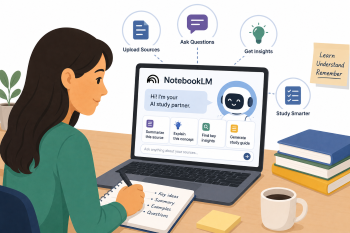
A hands-on workshop introducing adult learners to Google NotebookLM as a personalised AI study partner - uploading their own materials, generating summaries, extracting key concepts, and creating practice questions for independent and self-directed learning.
DigCompEdu Competence Area(s)
Digital resources, Teaching & learning, Empowering learners, Facilitating learners’ digital competence
Time
Preparation time 30 minutes
Implementation time 90 minutes
Educator Progression Level
Explorer
Target groups
Adult learners Group size: 10-15 B1-C1 language level Study Skills & Academic Support
Minimum student digital skill level
Basic
Minimum student language level
B1
🎓 Learning Objectives
By the end of this lesson, educators will be equipped to teach learners how to:
- Set up a NotebookLM notebook and upload personal study materials (PDFs, Google Docs, web links).
- Use NotebookLM to summarise complex texts and extract key concepts and vocabulary.
- Generate practice questions and engage in AI-powered dialogue to deepen understanding of study topics.
- Critically evaluate AI-generated summaries and verify information against original sources
Ingredients
| Item / Resource | Quantity | Purpose |
|---|---|---|
| Sample Study Materials | 1 set per participant | Short articles, textbook excerpts, or news reports (PDFs, Google Docs, web links) on a relevant topic |
| “NotebookLM Navigator” Prompt Guide | 1 per participant | Tested prompts for summarising, questioning, and discussing with NotebookLM |
| NotebookLM Access (Google account required) | 1 per participant | Core AI study tool – free via notebooklm.google |
| Device with internet access | 1 per participant | To access NotebookLM and upload materials |
Utensils
- Laptops, tablets, or computers with internet access (smartphones not recommended for this activity)
- Google accounts for all participants (required for NotebookLM access)
- Projector or shared screen for demonstrations
- Printed or digital “NotebookLM Navigator” Prompt Guide
🥣 Preparation – Before Implementation
- Select 3-4 Sample Study Materials appropriate to the group’s level and interests: short articles (300-500 words), a textbook excerpt, or a news report. Ensure all materials are publicly available or copyright-cleared.
- Prepare the “NotebookLM Navigator” Prompt Guide with tested prompts for: summarising sections, explaining vocabulary, generating practice questions, and engaging in topic dialogue.
- Create a demo NotebookLM notebook in advance with the sample materials pre-loaded, so you can demonstrate features without setup delays.
- Ensure all participants have active Google accounts. If some do not, prepare a plan (e.g. shared demo account or pairing with a participant who has one).
- Test NotebookLM’s summarisation and question-generation features with the chosen materials to anticipate any limitations or unexpected outputs.
🔥 Implementation Steps
Part 1: Setting Up NotebookLM (15 minutes)
- (5 min) Introduction: What is NotebookLM? Explain that it is a personalised AI study tool that works only with the materials you upload – unlike general AI chatbots, it stays grounded in your own sources.
- (10 min) Guided setup: Learners open NotebookLM, create their own new notebook, and upload 1-2 of the provided Sample Study Materials. Provide support for any technical issues.
Part 2: Understanding and Summarising with NotebookLM (45 minutes)
- (10 min) Introduction – Decoding Complex Texts: Discuss the challenge of understanding long or complex texts in a new language. Introduce NotebookLM’s summarisation and explanation features.
- (15 min) Demo – Summarisation & Key Concepts: Demonstrate selecting a complex paragraph and asking NotebookLM to “Summarise this paragraph in 3 sentences” or “Explain the main idea of this section.” Show how to extract key terms and definitions.
- (20 min) Guided practice – Extracting Knowledge: Learners work with one of their uploaded sources and use NotebookLM to: (a) summarise a specific section; (b) ask NotebookLM to explain 2-3 unfamiliar words or concepts; (c) generate a list of 5 key takeaways from the entire document.
Part 3: Interactive Learning and Assessment Prep (30 minutes)
- (10 min) Introduction – Active Learning: Discuss the benefits of active recall and self-testing for effective learning. Introduce NotebookLM’s ability to generate questions and engage in dialogue.
- (15 min) Demo – Quiz & Discussion: Demonstrate asking NotebookLM to “Generate 5 multiple-choice questions about [topic] from this source” or “Act as a tutor and discuss the implications of [concept] with me.”
- (20 min) Guided practice – Test Your Knowledge: Learners use NotebookLM to: (a) generate 3-5 practice questions based on their study materials; (b) attempt to answer the questions and use NotebookLM to check answers or provide further explanations; (c) engage in a short conversational exchange about a challenging concept from their sources.
🧂 Differentiation & Inclusion
- For lower digital literacy: Provide pre-loaded notebooks with sources already uploaded. Focus on basic summarisation and asking simple questions. Pair with more digitally confident learners.
- For lower language levels (B1): Use simpler study materials. Focus on single-sentence summaries and vocabulary explanations. Encourage using NotebookLM’s conversational features for basic language practice.
- For higher language levels (B1+): Encourage critical evaluation of NotebookLM’s summaries and explanations. Challenge learners to use NotebookLM to synthesise information across multiple sources or prepare for complex debates and presentations.
- For learners preparing for formal qualifications: Use NotebookLM with past exam papers or official study guides as uploaded sources.
🍴 Assessment & Feedback
| Criterion | Excellent | Good | Needs Work |
| NotebookLM setup and navigation | Independently creates a notebook, uploads materials, and navigates all key features | Sets up notebook with minor support; navigates most features | Requires significant support to set up or navigate NotebookLM |
| Summarisation and key concept extraction | Generates accurate summaries and clearly identifies 5 key takeaways from the source | Generates mostly accurate summaries with minor gaps | Struggles to generate useful summaries or identify key concepts |
| Practice question generation and self-testing | Generates relevant questions, attempts answers, and uses NotebookLM feedback effectively | Generates questions and attempts answers with some guidance | Struggles to generate questions or engage with AI feedback |
| Critical evaluation of AI output | Clearly identifies where NotebookLM is accurate and where verification is needed | Shows some awareness of AI limitations with prompting | Accepts all AI output without critical evaluation |
⚠️ Ethics, Privacy & Safeguarding
- Data privacy: While NotebookLM is a Google product, learners should still be cautious about uploading highly sensitive personal or confidential information. Use anonymised or publicly available documents for practice.
- AI limitations: NotebookLM is a tool to aid understanding, not a replacement for critical thinking or human instruction. It can sometimes misinterpret context or provide incomplete information.
- Information verification: Reinforce the importance of cross-referencing information from NotebookLM with original sources and other reliable resources, especially for critical facts.
- Google account data: Remind learners that materials uploaded to NotebookLM are processed by Google. Review Google’s privacy policy and terms of service with the group.
🍱 Extensions / Follow‑Ups
- Research Project Assistant: Learners use NotebookLM to organise sources and generate research questions for a small project.
- Vocabulary Builder: Learners use NotebookLM to create flashcards or vocabulary lists from their study materials.
- Presentation Outline Generator: Learners upload presentation sources and ask NotebookLM to help structure an outline.
- Audio Overview: Use NotebookLM’s “Audio Overview” feature to generate a podcast-style summary of uploaded materials for listening practice.
🔗 Cross‑Subject Link
References & Resources
NotebookLM: https://notebooklm.google — Access to the tool and official guides
Google Workspace Learning Center: https://support.google.com/a/users/answer/13931109 — Resources and tutorials for NotebookLM
Project Gutenberg (public domain texts): https://www.gutenberg.org — Free study materials
Wikipedia (for practice uploads): https://www.wikipedia.org — Publicly available reference content