
Enhancing Accessibility with CapCut – Multilingual Transcription & Subtitling
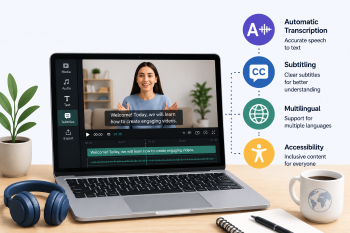
Use CapCut's AI-powered transcription and subtitle tools to make educational videos accessible to multilingual adult learners through automatic captions and translations.
DigCompEdu Competence Area(s)
Digital resources, Teaching & learning, Empowering learners
Time
Preparation time 20 minutes
Implementation time 60 minutes
Educator Progression Level
Explorer
Target groups
Adult migrant learners Multilingual classrooms – A1 to B2
Minimum student digital skill level
Basic
Minimum student language level
A1
🎓 Learning Objectives
Students will be able to:
- Use CapCut to add automatic subtitles to a short video clip.
- Edit and correct AI-generated captions for accuracy.
- Translate subtitles into learners’ home languages to support comprehension.
- Create accessible video content for multilingual audiences.
Ingredients
| Item / Resource | Quantity | Purpose |
|---|---|---|
| CapCut app (free, mobile or desktop) | 1 per learner or educator | To add and edit subtitles on video |
| Short video clip (1-3 minutes) | 1 per session | Source video for subtitle practice |
| Device with internet access | 1 per learner | To access CapCut |
| CapCut account (free) | 1 per user | Required for saving and exporting projects |
Utensils
- Smartphone, tablet, or computer with CapCut installed
- Internet access
- Short video clip saved to device or accessible online
🥣 Preparation – Before Implementation
- Download and install CapCut on your device (available on iOS, Android, and desktop).
- Prepare a short video clip (1-3 minutes) relevant to the lesson topic.
- Test the auto-subtitle feature with the video to check accuracy and language options.
- Prepare a simple step-by-step guide for learners showing how to add subtitles.
🔥 Implementation Steps
- Open CapCut and create a new project. Import the prepared video clip.
- Navigate to “Text” > “Auto Captions” and select the language of the video.
- Wait for CapCut to generate automatic subtitles (usually 1-2 minutes).
- Review the auto-generated captions and correct any errors by tapping on individual subtitle blocks.
- Adjust font size, colour, and position for maximum readability.
- Optional: Use the translation feature to add subtitles in learners’ home languages.
- Export the video with subtitles and share via the classroom LMS or messaging app.
🧂 Differentiation & Inclusion
- For beginners: Provide a printed transcript alongside the subtitled video for additional support.
- For advanced learners: Ask them to create their own subtitled video on a topic of their choice.
- For deaf or hard-of-hearing learners: Ensure all classroom videos have accurate captions as standard practice.
🍴 Assessment & Feedback
| Criterion | Excellent | Good | Needs Work |
| Caption accuracy | All captions are accurate and correctly timed | Most captions are accurate with minor errors | Significant errors in captions affecting comprehension |
| Accessibility of final video | Video is fully accessible with clear, readable subtitles | Subtitles are present but readability could be improved | Subtitles are missing or unreadable |
| Technical skill | Completes the full CapCut workflow independently | Completes most steps with minor support | Requires significant support throughout |
⚠️ Ethics, Privacy & Safeguarding
- Ensure videos used do not contain personal or sensitive information about learners.
- Check that video content is appropriate and culturally sensitive for the learner group.
- Be aware that AI-generated captions may contain errors; always review before sharing.
- Follow school policies on recording and sharing video content.
🍱 Extensions / Follow‑Ups
- Ask learners to subtitle a video in their home language for a classmate.
- Create a class video library of subtitled educational clips on key topics.
- Use subtitled videos for flipped learning: learners watch at home and discuss in class.
🔗 Cross‑Subject Link
References & Resources
CapCut: https://www.capcut.com
Web Content Accessibility Guidelines (WCAG): https://www.w3.org/WAI/standards-guidelines/wcag/